Think Like a Coder: Fun Ways to Bring Computational Thinking into Any Classroom
June 1, 2026
Why isn’t there a city on the moon?
June 3, 2026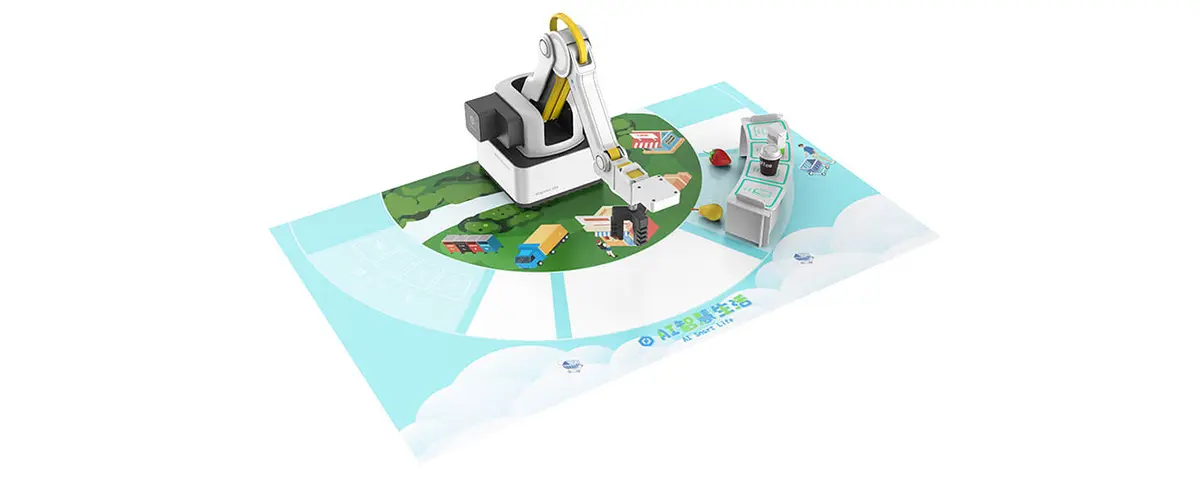
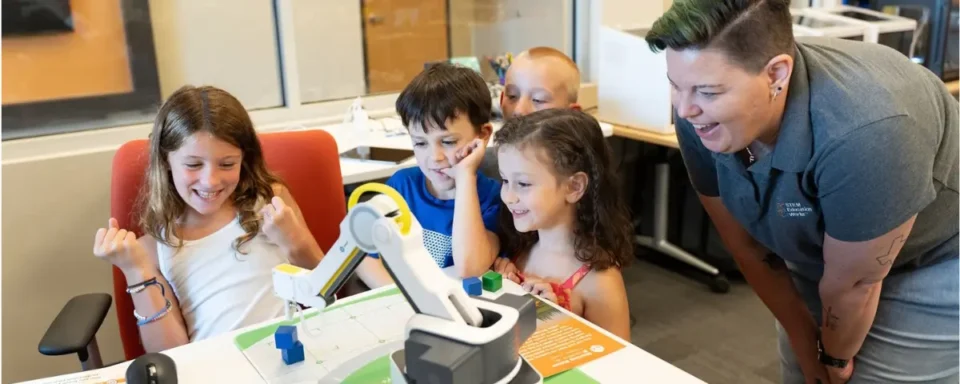
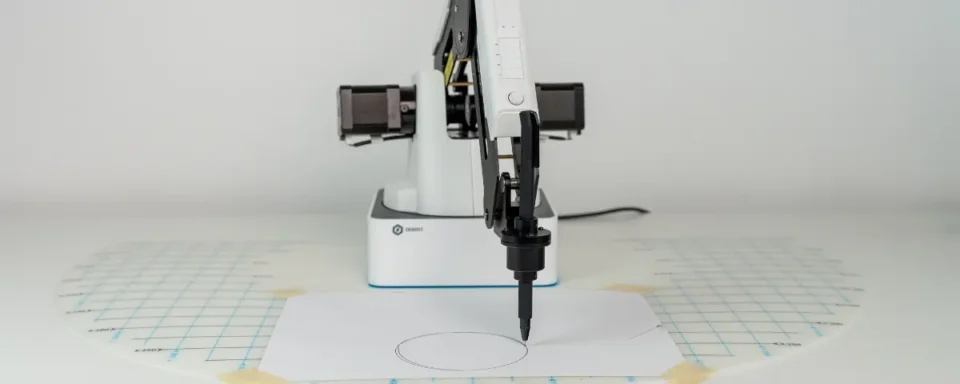
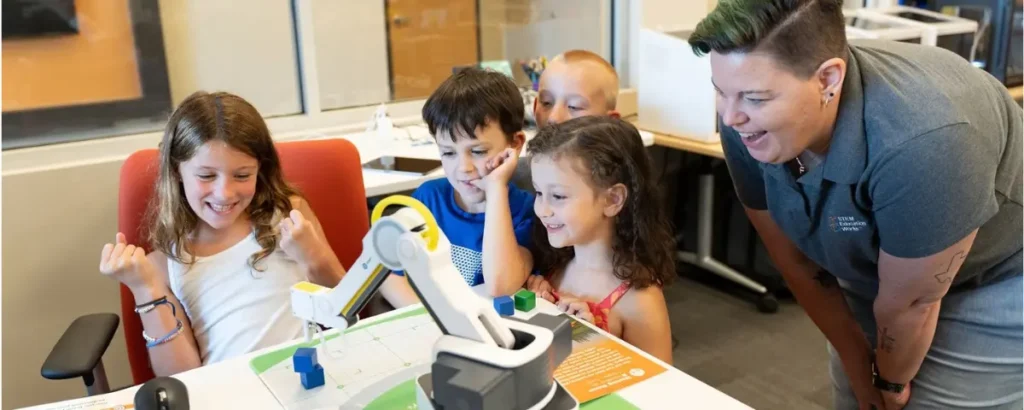
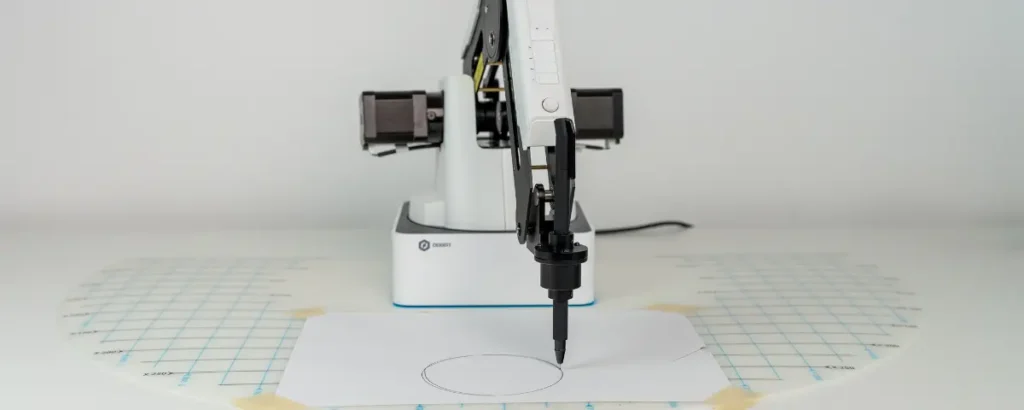
Artificial intelligence (AI) continues to grow and advance. Many future careers in STEM will require students to understand AI and how to effectively program AI-powered machinery. Dobot Magician Lite allows students to get hands-on experience working with an AI-powered robot. This small robot is equipped with a camera and advanced machine-learning capabilities that enable it to recognize objects.
Getting Started with Dobot Lab
To program your Dobot, get started using Dobot Lab, which opens in a browser. There’s no need to download another program. To begin exploring the AI features, we recommend starting with DobotBlock Lab. Block coding is a great way to get students started coding. It’s easy for students, even in elementary school, to understand because students don’t need to memorize syntax to code. Next, click the extend button and add the AI extension. All the AI blocks will be pink.
Machine Learning Basics
If you’ve ever used ChatGPT or another AI, it can quickly answer questions and identify images. The reason these programs can quickly respond with information is that they’ve been fed a ton of data from developers and the Internet. Dobot Magician isn’t quite that advanced, so it can only recognize things that you’ve programmed it to recognize. One of the first steps to using AI with Dobot Magician is to train it to recognize objects you’ll later ask it to identify.
Voice Recognition
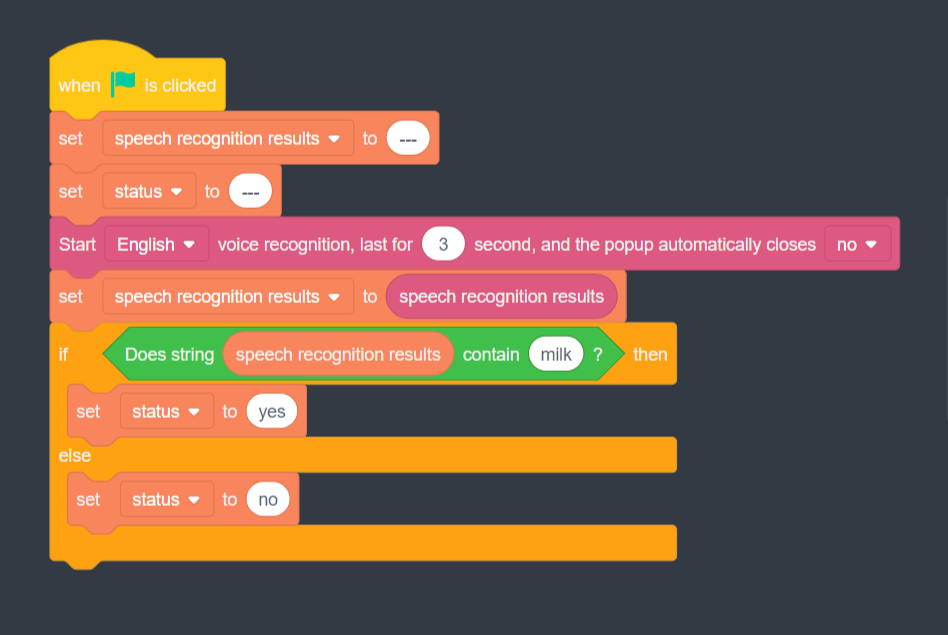
Dobot Magician comes pre-programmed to recognize voices. Just like how Siri or Google can recognize your voice, Dobot Magician can already recognize human voices speaking English. To get started, clear the speech recognition and status variables. This prevents anything you’ve previously recorded from interfering with your results. Next, start voice recognition and set it to record for a few seconds. Finally, you can see if the robot properly identified the word you wanted it to.
Face Recognition
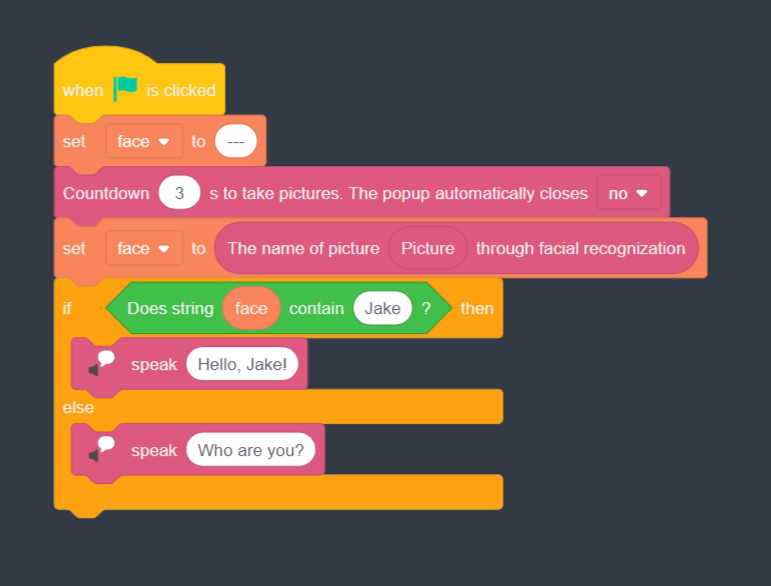
Dobot Magician can recognize faces it knows. When you meet someone new, you don’t know their name automatically. Either the stranger tells you their name or someone else introduces you. Just like you, Dobot Magician cannot recognize faces that it doesn’t know. To get started, Dobot needs to see your face, and you need to tell Dobot your name. From there, the robot can put a face to a name and recognize you. The more pictures you provide, the more accurate the robot will be. After you’ve added this data, you can get started coding. Similar to the voice recognition process, you’ll need to clear the face variable, so the robot doesn’t get confused with previous data. Then, you’ll start the camera and have it record for three seconds. From there, you set the face variable to the name of the person whose face you’ve recorded. Finally, you can test the program’s accuracy by asking the robot to say “hello” if it recognizes the face or “who are you?” if it doesn’t.
Picture Recognition
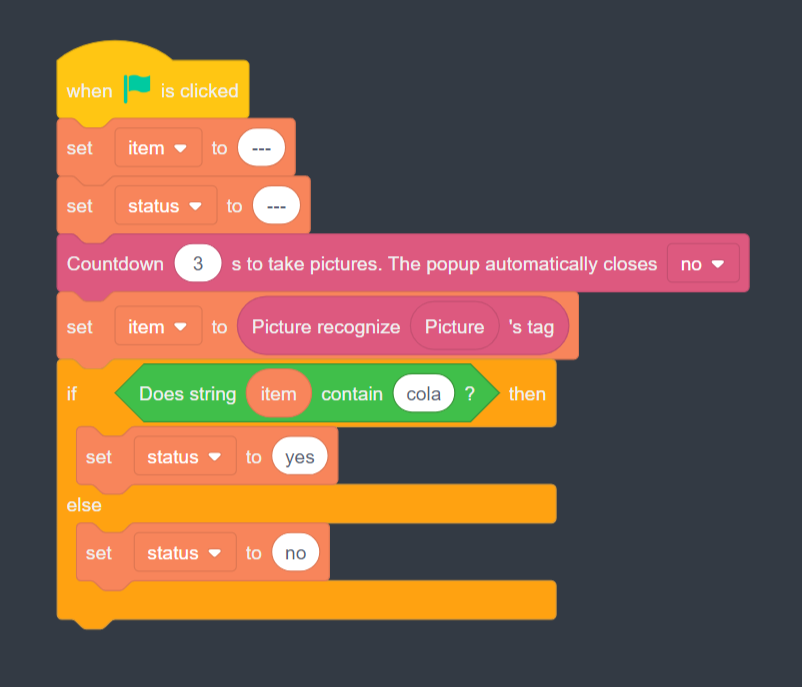
The Dobot Magician Lite AI Teaching Kit includes eight drink models. Through this process, you can program Dobot Magician Lite to recognize these items. First, you need to calibrate the robot, so it knows what these objects look like. One by one, take pictures of the item from multiple angles. Some of the drink items have similar lids, so it will be easier for the robot to distinguish them by photographing them from the side. Once the robot knows what these objects are, you can start coding by clearing the item and status variables. Then, code the robot to take a picture after a few seconds. Using the “picture recognize” command, the robot can determine whether the item in the picture matches the one you asked for. If the item matches, the robot will change the status to “yes”. If not, the status will be “no”. Sometimes, Dobot Magician will mistake one item for another, but the more pictures the robot has to reference, the more accurate it will be. Make sure to take multiple pictures of the item from different angles and in different lighting conditions.
Unfortunately, picture recognition can only identify one item at a time, but the next function can recognize multiple items by their shape.
Shape Recognition
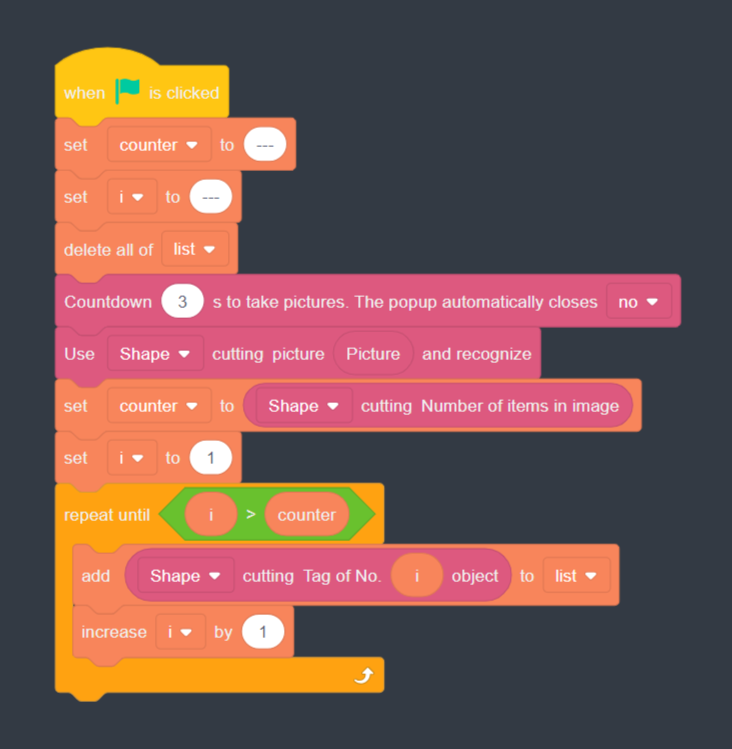
Shape recognition does exactly what the name implies: it identifies items by their shape. This means it’s able to recognize multiple items at a time, but it may be less accurate than picture recognition because it only relies on the object’s outline or silhouette, rather than what it looks like. To begin coding, you’ll need to train the robot to recognize the shape of the item from multiple angles. Some of the objects, particularly the drinks, have similar shapes, so you may have to photograph one from the top and one from the side to differentiate them. This function has a third variable, the counter, so you’ll need to clear that variable along with the item variable. Because this function counts multiple items, it also creates a list of everything you’ve asked it to identify, so you’ll need to delete that list for accurate results. Have the camera take a photo, and use the shape-cutting function for the robot to divide the items on screen. Set the counter variable to the number of items in the picture. Set the function to repeat until it has identified all the items in the picture using a conditional function.
Shape recognition is far from perfect. Again, it can make mistakes because it is relying on shape alone, but with more pictures and practice, the Dobot Magician will become more accurate.
Color Recognition
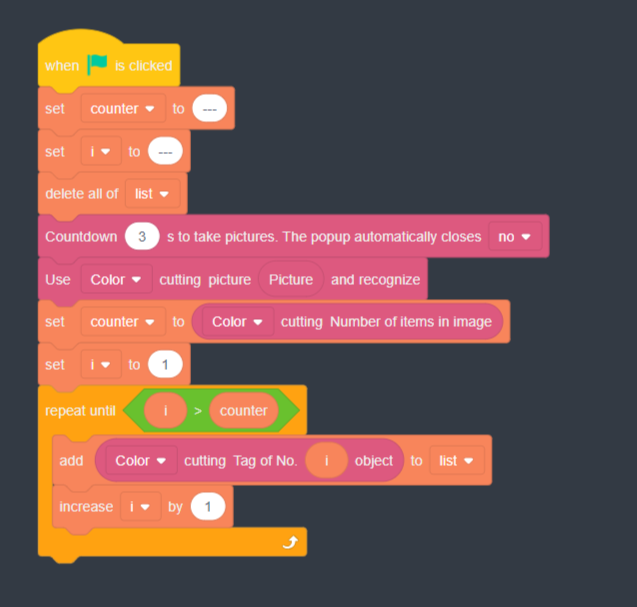
Color recognition follows the same process as the previous functions. You start by calibrating the robot using colored blocks, teaching it to recognize each block by its color. Make sure to take pictures under different lighting conditions, so the robot can recognize the color even in shadows and low light. Similar to the shape function, you need to clear the variables and the contents of the list variable. From there, use the color-cutting function so the robot can identify various colors in the picture it takes. Then, set the counter to repeat the same process for each object on screen. Finally, add the name of each colored block to the list.
Text Recognition
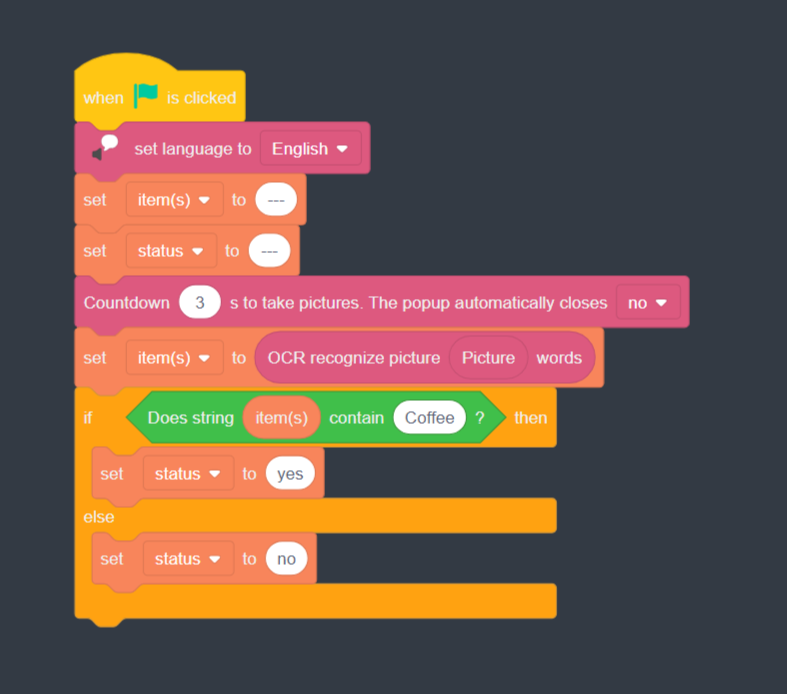
The last function the AI can perform is to recognize text. The teaching kit comes with blocks with text on them. First, set the language to English. Clear the item and status variables (this function doesn’t count anything). Initialize the camera and set it to record. Set the item to the text on the object, then if the robot correctly reads the text, have it return “yes”. If it doesn’t, then have it return “no”.
Classroom Impact and Next Steps
As AI becomes more popular, STEM classrooms need to adapt by incorporating AI tools, as the industry does. With the Dobot Magician Lite and the accompanying teaching kit, students can get started experimenting with AI. Students can use AI to identify voices, faces, items, colors, and text. They can also learn the limitations of AI and how to improve it over time. If you’re looking to bring AI and robotics into the classroom, reach out to us and learn more about Dobot Magician Lite AI and accompanying tools and curriculum.
STEM Education Works is dedicated to providing cost-effective and user-friendly access to top-notch STEM curricula and technologies, driven by our mission to transform students’ lives. Learn more about what we do through our socials, Facebook, Twitter, Youtube, LinkedIn, Instagram, and TikTok.